📋 About
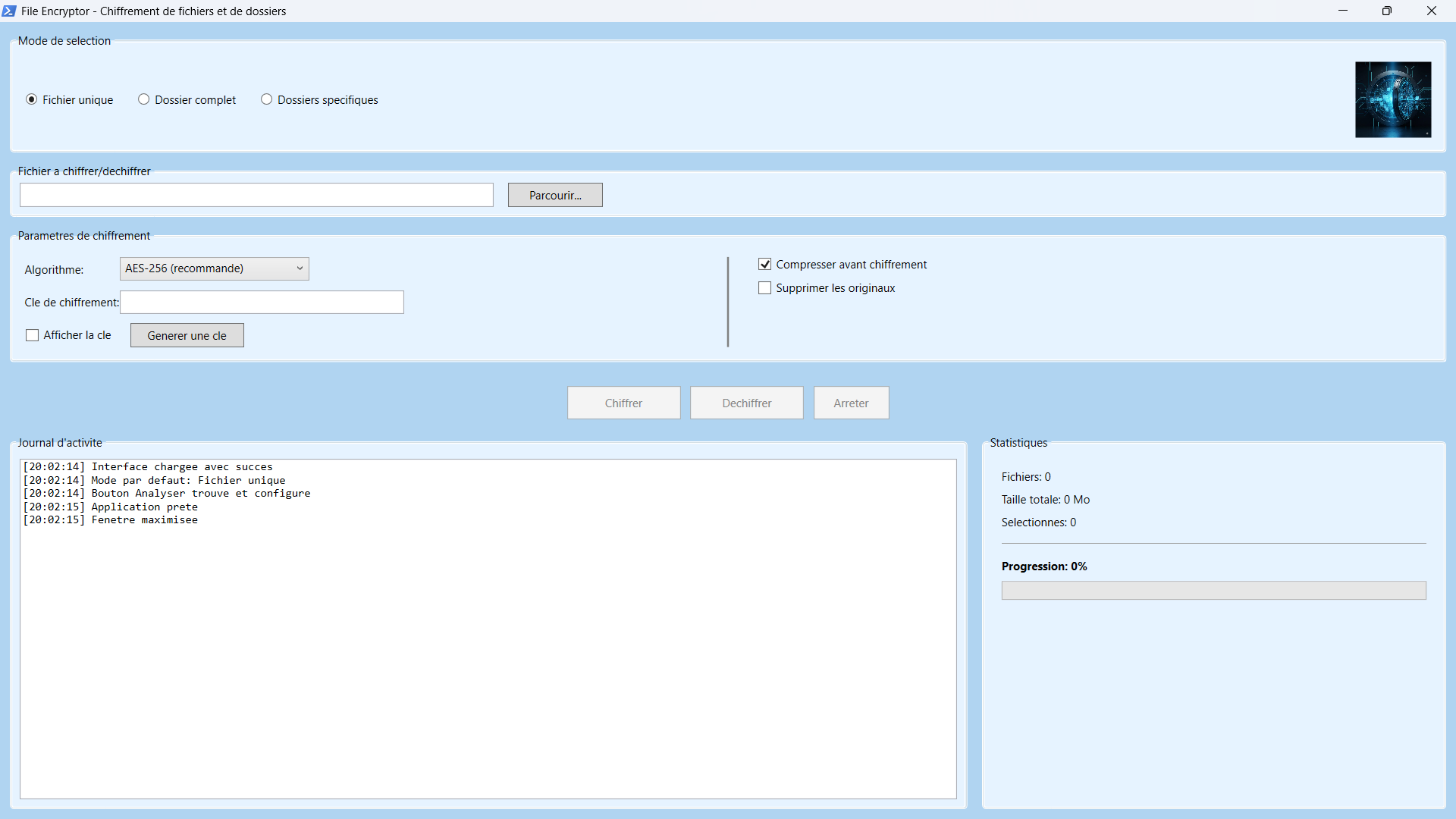
File Encryptor v2.0 is a Windows PowerShell application with a WPF graphical interface that lets you encrypt and decrypt your files and folders securely. Designed to be simple to use while offering advanced features, it uses military-grade AES encryption to protect your sensitive data.
🌟 Main features
AES encryption
AES-256, AES-192 and AES-128 bit algorithms for maximum security
Multiple modes
Single file, entire folder or specific folders (Documents, Desktop, etc.)
Compression
Automatic GZIP compression before encryption to reduce size
Folder structure
Preserves the structure of folders and subfolders, even empty ones
Advanced filters
Filtering by extension, exclusion of system and hidden files
Real-time tracking
Statistics, progress and detailed activity log
Key generation
Built-in generator of secure random keys
Secure deletion
Option to automatically delete the original files
🎯 Usage modes
1️⃣ Single file
Encrypt or decrypt a single file quickly. Ideal for protecting an important document, a sensitive photo or any other individual file.
- ✓ Direct file selection
- ✓ Immediate encryption/decryption
- ✓ Perfect for standalone files
2️⃣ Entire folder
Encrypt all the files in an entire folder, including all subfolders. The complete structure is preserved in a new name_encrypted folder.
- ✓ Recursive scan of subfolders
- ✓ Filtering by extension
- ✓ Creation of
FOLDER_encrypted - ✓ All subfolders are recreated
3️⃣ Specific folders
Select several standard Windows folders (Documents, Desktop, Pictures, etc.) and/or add your own custom folders. All of them will be encrypted in a single operation.
- ✓ Predefined Windows folders (Documents, Desktop, Downloads, Pictures, Music, Videos, OneDrive)
- ✓ Custom folders can be added
- ✓ Multiple selection
- ✓ Ideal for a full backup
📖 User guide
Encrypting files
-
Choose the mode
Select "Single file", "Entire folder" or "Specific folders" -
Select your files/folders
Use "Browse..." or tick the Windows folders you want -
Configure the options
Choose the algorithm (AES-256 recommended) and enable compression if you wish -
Enter your encryption key
Type in a custom key or click "Generate a key" to create one automatically -
Analyse (folder mode)
Click "Analyse files" to see how many files will be processed -
Encrypt!
Click "Encrypt" and wait for processing to finish
.encrypted extension.
Decrypting files
-
Select the encrypted files
Choose the file(s) or folder(s) containing the.encryptedfiles -
Enter the same key
Type in exactly the same key that was used for encryption -
Decrypt!
Click "Decrypt" - the original files will be restored
⚙️ Technical specifications
Encrypted file format
Structure of an .encrypted file:
- Byte 0: Compression marker (0x01 if compressed, 0x00 otherwise)
- Bytes 1-16: Random initialisation vector (IV)
- Bytes 17+: Encrypted (and possibly compressed) data
This format lets the program automatically tell whether a file was compressed before encryption.
🛡️ Security
Strengths
- ✅ AES-256: Algorithm approved by the NSA for "Top Secret" documents
- ✅ Random IV: Each file has a unique initialisation vector
- ✅ Key derivation: PBKDF2 with 10,000 iterations against brute-force attacks
- ✅ CBC mode: Each block depends on the previous one for added security
- ✅ No backdoor: Transparent code, no back door
Best Practices
- 🔑 Strong key: Use at least 16 characters, with upper and lower case letters, digits and symbols
- 💾 Back up your key: Without it, your files are permanently lost
- 🔒 Never share your key: Treat it like a critical password
- 📝 Test first: Encrypt a test file before encrypting important data
- 💿 Keep a copy: Always keep an unencrypted copy until you have verified that decryption works
Limitations
- ⚠️ The program does not protect against physical access to your unlocked computer
- ⚠️ Files that are in use or locked may not be encrypted
- ⚠️ Security depends entirely on the strength of your key
- ⚠️ No recovery is possible without the original key
💻 System requirements
- Windows 10 or Windows 11
- PowerShell 5.1 or later (pre-installed on Windows)
- .NET Framework 4.5+ (pre-installed on Windows)
- PowerShell execution rights configured (see below)
First use
If the script does not start, you need to allow PowerShell scripts to run:
- Open PowerShell as administrator
- Run:
Set-ExecutionPolicy RemoteSigned - Confirm with
Y(Yes)
This command only needs to be run once on your system.
❓ Frequently asked questions
Can I recover my files if I have lost my key?
No. AES-256 encryption is designed to be unbreakable. Without the exact key, it is mathematically impossible to decrypt the files, even with supercomputers.
Are encrypted files larger?
With compression enabled (recommended), files can be smaller than the originals. Without compression, they are very slightly larger (+17 bytes for the IV and the marker).
Can I encrypt files that are already encrypted?
Yes, but it is pointless. A file already encrypted with AES-256 cannot be made any more secure. It will just increase the size and slow down processing.
Is the "Delete originals" option safe?
Yes, but test first on non-critical files. Make sure you can decrypt correctly before deleting important data.
How long does it take to encrypt a folder?
It depends on the size and number of files. Allow roughly 50-100 MB/second on a modern computer. A 10 GB folder takes about 2-3 minutes.
Does the program run on Mac or Linux?
No, it is designed for Windows only (PowerShell + WPF). For Mac/Linux, use openssl on the command line.
🔧 Troubleshooting
The program won't start
- Check that PowerShell 5.1+ is installed:
$PSVersionTable.PSVersion - Set the execution policy:
Set-ExecutionPolicy RemoteSigned - Right-click the file → "Run with PowerShell"
"Unable to decrypt" error
- Check that you are using exactly the same key (mind the case)
- Check that the file is not corrupted
- Make sure the file was actually encrypted with this program
- Untick "Compress before encryption" if the files were not compressed
Some files are not encrypted
- Check the extension filters
- Check that "Browse subfolders" is ticked
- System/hidden files are excluded by default (untick the options)
- Close all programs that are using these files
ℹ️ About
File Encryptor v2.0 was developed to offer a simple and effective solution for protecting personal and professional data. The program is provided as is, without warranty, for educational and personal use.
Licence: Free to use for personal and professional purposes
Support: E-MED-CYBER - Cybersecurity consulting
Version date: December 2025
The author cannot be held liable for any data loss resulting from the use of this program. It is your responsibility to test the program on non-critical files before using it on important data, and to keep backups of your data.