2025 Tutorial: Upgrade Your Incompatible PC to Windows 11 (for Free)
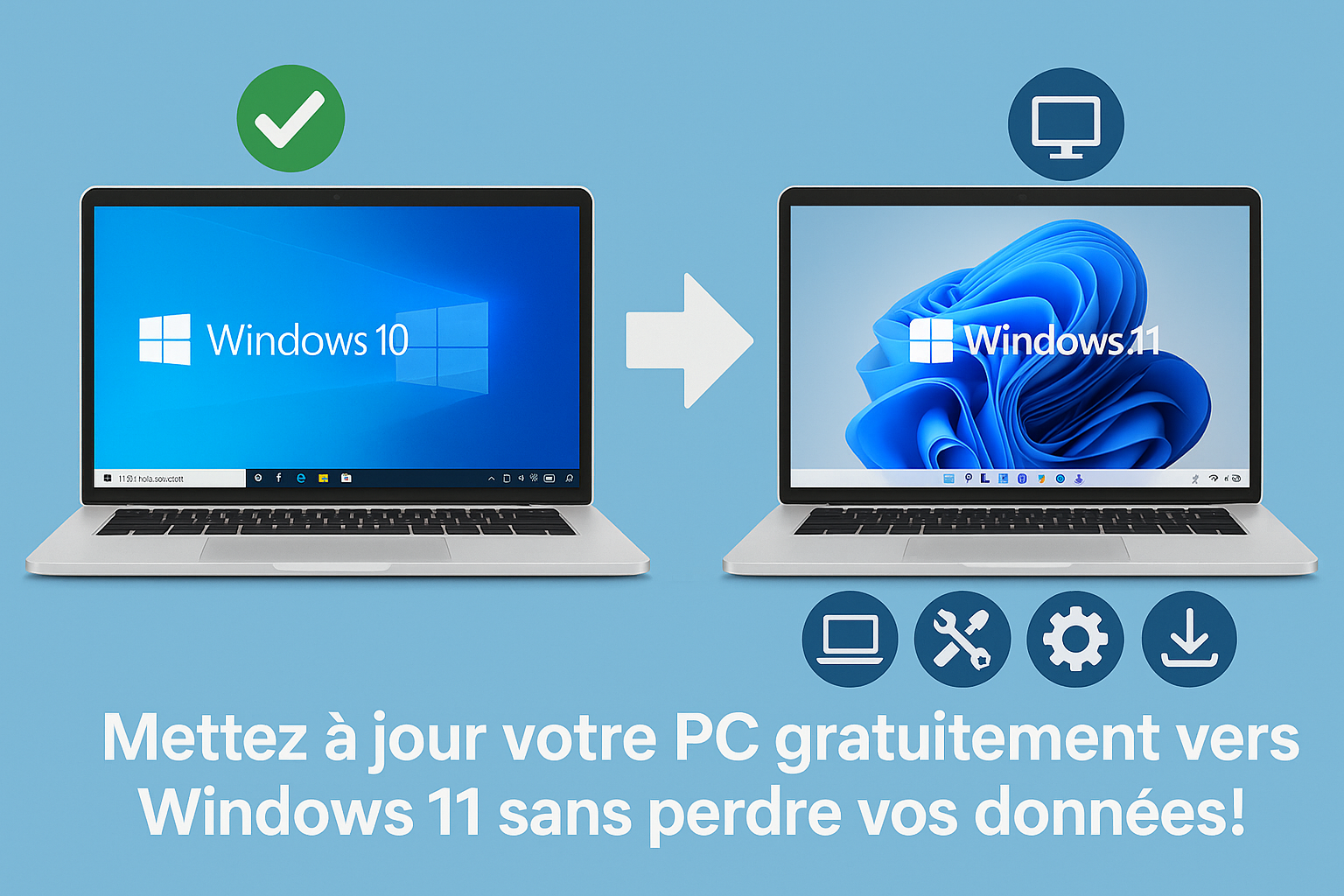
If your computer is still running Windows 10 but refuses to upgrade to Windows 11, don't panic!
😊 This tutorial will guide you step by step through bypassing the restrictions imposed by Microsoft and installing Windows 11 for free, without losing your files or your applications.
🔍 Step 1: Check your PC's compatibility:
If you already know that your system is not compatible, go to step 2.
1. Open the Windows Update settings
Click on the Start menu 🪟 or in the search bar next to it.
Type "Update" or "Windows Update".
Select "Windows Update settings" from the results.
2. Check the system requirements for Windows 11
In the window that opens, look for the option "Check the system requirements for Windows 11".
Click the link to open the dedicated Microsoft page.
3. Use the PC Health Check tool
Download and launch the PC Health Check application.
Click "Check now".
If you see a message saying that your processor (CPU) or your TPM 2.0 is not compatible, don't worry. We're going to get around these limitations.
Note: The TPM (Trusted Platform Module) 🔒 is a hardware security chip required for Windows 11. On some older PCs, it is missing or disabled. But we can ignore it thanks to a special tool.
⚙️ Step 2: Download the Flyby11 tool
To get around the hardware restrictions imposed by Microsoft, we will use Flyby11, a free, open-source tool.
Open your web browser 🌐.
Search for "Flyby11".
Choose the first link (the official site).
Go to the right-hand column and find Flyby11 v2.5 (or the current version).
Download the ZIP file.
2. Extract the ZIP file
Create a new folder, for example "Flyby11" 📁.
Copy the contents of the ZIP file and paste them into this folder.
Double-click "Flyby11.exe".
If Windows Defender blocks it from running, click "More info" > "Run anyway".
The tool will analyse your configuration. If you see two green ticks ✅, that's a good sign: your PC can run Windows 11!
💾 Step 3: Download the official Windows 11 ISO
1. Go to the official Microsoft website
Go to https://www.microsoft.com/software-download/windows11 .
2. Download the ISO disk image
Scroll down to the section "Download Windows 11 Disk Image (ISO)".
Choose the x64 version (64-bit).
Select the language matching that of your current Windows (e.g. French - France).
Click "Confirm" then "Download".
Tip: To find out your system's language, go to Settings > Language. 🌍
🛠️ Step 4: Start the installation via Flyby11
1. Prepare the installation
Leave Flyby11 open.
In the application, click "Start" > "Upgrade now".
In the drop-down menu, select "Select from computer".
2. Select the ISO file
Browse to the folder where you downloaded the Windows 11 ISO.
Select the ISO file and click "Open".
🧩 Step 5: Follow the installation
1. Windows Server installer
A window titled "Install Windows Server" appears. Click "Next".
Accept the terms of use (you can read them if you wish).
2. Choose what to keep
Choose:
Keep my files and applications (if available),
Keep files only, or
Keep nothing (full format).
Warning: If the option "Keep my files and applications" is greyed out, it means the language of the ISO does not match that of your system. In that case, download the ISO again in the right language.
3. Complete the installation
Click "Next", check the information displayed, then click "Install".
☕ Step 6: Wait for the installation to finish
The installation can take more than an hour ⏳, depending on the power of your machine and the quality of your internet connection.
Plug your computer into the mains if it is a laptop. 🔌
Do not close the windows or switch off the computer during the installation.
After a few automatic restarts, you will arrive at the Windows 11 welcome screen! 🎉
✅ Final result
All your applications are there. 📱
All your personal files have been kept. 📂
You are now running Windows 11, even though your PC was not officially compatible.
🎉 Conclusion
With this simple, free and quick method:
You extend the life of your machine, 🔄
You get money back, 💰
And you reduce your environmental impact. 🌱
If you enjoyed this tutorial, feel free to:
💬 Leave a comment,
🔁 Share this article,
Thank you for reading, and see you very soon! 😊
*If you want another way to move to Windows 11 on an old PC without losing your data, it's this way: