Browsing Anonymously on Chrome, Edge and Safari: A Mini-Tutorial to Protect Your Privacy
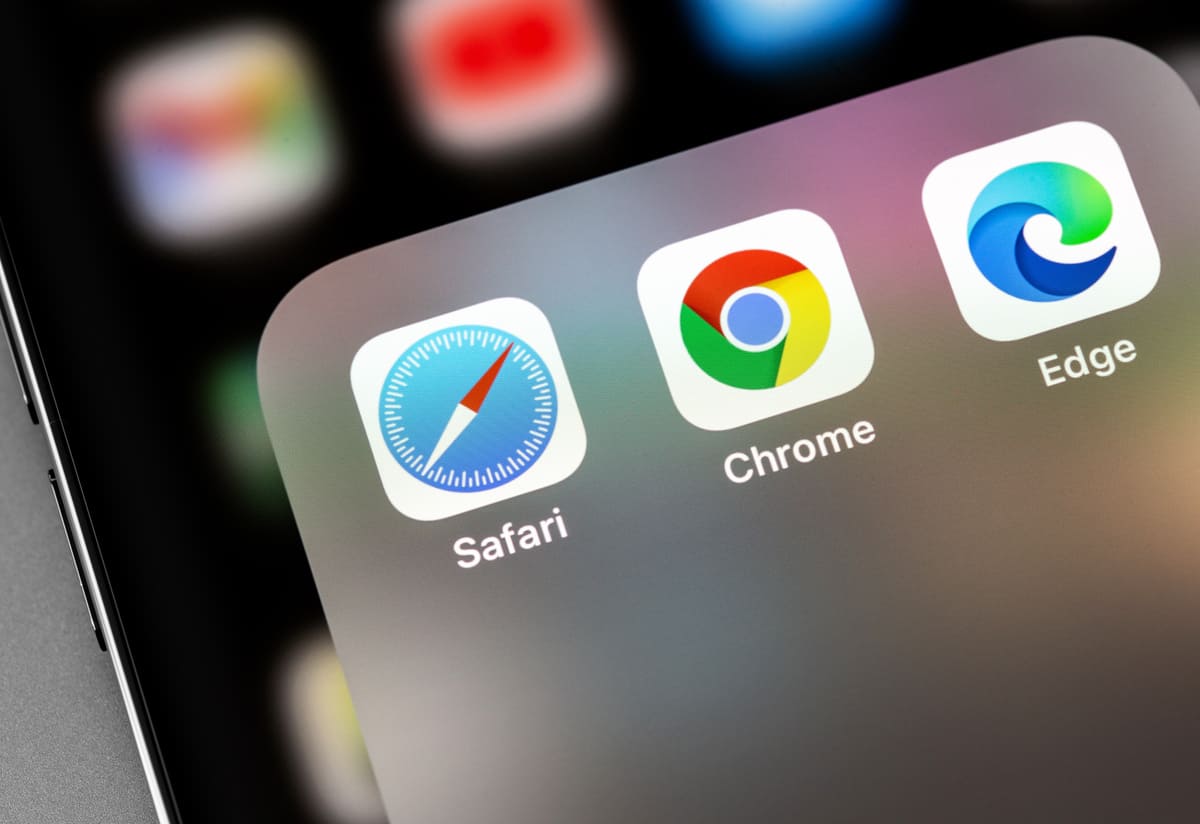
Online privacy is a growing concern for many internet users. Although VPNs are often recommended for browsing anonymously, there are steps you can take directly in your browser to strengthen your privacy. In this mini-tutorial, we will explain how to browse anonymously on the Chrome, Edge and Safari browsers, while protecting your privacy online.
Step 1: Use private browsing mode:
The first step to browsing anonymously on Chrome, Edge and Safari is to use the built-in private browsing mode. Follow these simple steps:
- On Chrome: Click the three vertical dots at the top right of the browser window, then select "New Incognito window" from the drop-down menu.
- On Edge: Click the three horizontal dots at the top right of the browser window, then select "New InPrivate window" from the menu.
- On Safari: Click "File" in the menu bar, then select "New Private Window".
When you use private browsing mode, your browser will not keep your browsing history, cookies or passwords, helping to preserve your anonymity online.
Step 2: Block trackers and ads:
Online trackers and ads can compromise your privacy by collecting information about your browsing habits. Fortunately, you can use extensions to block these unwanted elements. Follow these steps to install a tracker and ad-blocking extension:
- On Chrome: Click the three vertical dots, then select "Extensions" from the menu. Look for a popular extension such as "uBlock Origin" or "Privacy Badger" and click "Add to Chrome" to install it.
- On Edge: Click the three horizontal dots, then select "Extensions" from the menu. Look for a popular extension such as "uBlock Origin" or "Privacy Badger" and click "Get" to install it.
- On Safari: Click "Safari" in the menu bar, then select "Preferences". Go to the "Extensions" tab and choose a tracker and ad-blocking extension, such as "Ghostery" or "AdGuard". Click "Install" to add the extension to Safari.
These extensions will block trackers and ads while you browse, strengthening your anonymity online.
Step 3: Disable third-party cookies:
Cookies are small files that websites place on your computer to track your online activity. To disable third-party cookies on Chrome, Edge and Safari, follow these steps:
- On Chrome: Click the three vertical dots, then select "Settings" from the menu. Under the "Privacy and security" section, click "Content settings", then "Cookies". Enable the "Block third-party cookies" option to disable them.
- On Edge: Click the three horizontal dots, then select "Settings" from the menu. Under the "Cookies and site data" section, enable the "Block all third-party cookies" option.
- On Safari: Click "Safari" in the menu bar, then select "Preferences". Go to the "Privacy" tab and tick the "Block all cookies" box. You can also choose the "Block third-party cookies and advertisers" option for additional protection.
By disabling third-party cookies, you reduce the amount of personal information collected while you browse, thereby improving your anonymity.
Step 4: Use a privacy-friendly search engine:
Traditional search engines often record your search queries and link them to your IP address. To protect your privacy, you can use a privacy-friendly search engine such as DuckDuckGo. Here is how to set DuckDuckGo as the default search engine in your browsers:
- On Chrome: Click the three vertical dots, then select "Settings" from the menu. Under the "Search" section, click "Search engine". From the drop-down list, select "DuckDuckGo".
- On Edge: Click the three horizontal dots, then select "Settings" from the menu. Under the "Search engine" section, click "Manage search engines". Click the "Add" button next to DuckDuckGo to set it as your default search engine.
- On Safari: Click "Safari" in the menu bar, then select "Preferences". Go to the "Search" tab and choose DuckDuckGo from the list of search engines.
By using a privacy-friendly search engine, your online searches will be protected from any data collection for advertising purposes.
Even without using a VPN, you can browse anonymously on Chrome, Edge and Safari by following these simple steps.
By using private browsing mode, blocking trackers and ads with extensions, disabling third-party cookies and using a privacy-friendly search engine, you strengthen your online privacy.
Remember that these measures are complementary, and it is always advisable to take other precautions to protect your online privacy.
Powered by E-MED-CYBER